

- Contact us
-

choose your language
-
 RECOMMENDED LINKS
 -


Get the right level of protection with our SSL options
From GeoTrust DV SSL to True Business ID—we’ve got the right certificate for your organization.
TLS/SSL certificates are the foundation of website security. Each certificate is validated by our five-star rated support team. Choose the right certificate that will not only protect your website—but secure your brand name.
Compare
and Buy
GeoTrust DV SSL
GeoTrust
TrueBusiness ID
Upgrade
GeoTrust
TrueBusiness ID
with EV
Extensive company validation to protect your brand

Organization Validation
Domain Ownership Validation
Geotrust Powered By DigiCert Site Seal
Priority support & validation
DigiCert CertCentral Basic account
Number of Authentication Checks
1
9
16
Issuance Time
Most certificates issued in minutes – no identity checks
Most certificates issued in one day
Most certificates issued in 1-3 days
Assurance
$500K USD warranty
$1.25M USD warranty
$1.5M USD warranty
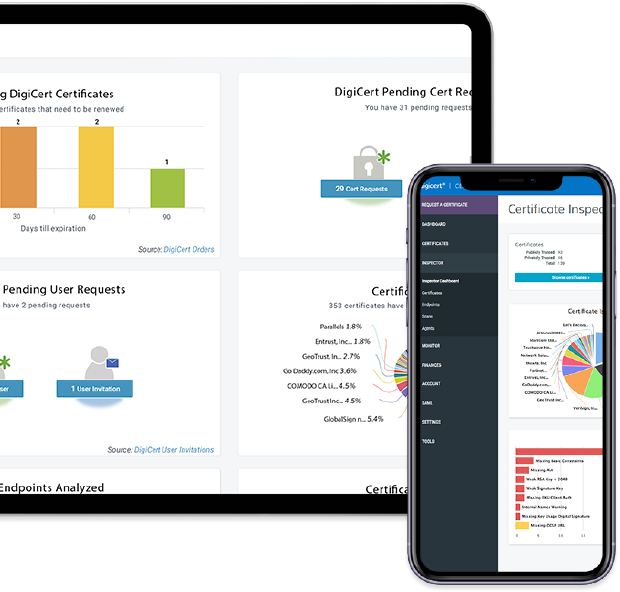
Manage every GeoTrust certificate with our award-winning platform
CertCentral®, powered by DigiCert, provides the most innovative tools to stay ahead of managing your website’s security.
CertCentral is a powerful and versatile management console that allows you to monitor and manage every certificate in your environment—even if it wasn’t issued by GeoTrust. Get expansive oversight of your digital security without leaving your desktop.
Already have an account? If not, learn more here.
-
About
GeoTrust is a globally-recognized provider of TLS/SSL certificates—now powered by DigiCert, the industry-leader in high-assurance website security. Our engineers work behind the scenes to ensure both your brand and your customers’ most sensitive personal information are protected. We provide affordable and flexible TLS/SSL certificates to a wide variety of businesses and organizations to reliably secure websites, servers and digital environments. GeoTrust customers also have access to DigiCert’s award-winning customer support available around the globe.
-


© 2021 GeoTrust. All rights reserved.