
 Vulnerability Manager
The quickest way to find and eliminate vulnerabilities in your online
servers and internet-facing assets.
No credit card required
From $12.00/month

Vulnerability Manager at a Glance
Protect your server and keep your business running. Here’s how our web server scanner tool keeps servers healthy with fewer breaches and more uptime.

Vulnerability assessments - find what's putting your server at risk
Automated scans find if any of the 375,000+ security vulnerabilities out there are lurking on your servers, cloud infrastructure, and server ports.

Real-time alerts directly to email
If the Vulnerability Manager finds any critical vulnerabilities or misconfigurations, you'll be the first to know with an email alert.

Fix vulnerabilities quickly so you can get back to business
When a vulnerability is found, you can quickly remediate it with the actionable steps the scanner gives you, so it's back to "business as usual."

The easiest setup ever
Setting up the Vulnerability Manager only takes a few minutes. Just follow the step by step instructions and run the scan.
Explore Vulnerability Manager's Capabilities
Get vulnerability scanning set up and running in minutes, not days or weeks
Easily run internal scans, external scans, or both. External scans just need an IP address; internal scanning needs one copy-paste command to install the agent.
Try It Now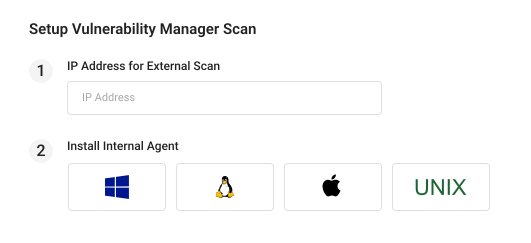
External scans just need an IP address
Set up an external scan by entering the internet-facing IPv4 address you want to scan.
Easy agent setup for internal scans
Run an internal scan by installing the lightweight agent—available for Windows, Linux, Unix, and macOS.
Scans for 375,000+ vulnerabilities with industry-leading vulnerability detection
GeoTrust Vulnerability Manager has one of the most comprehensive vulnerability databases in the industry, updated daily to find the latest threats.
Try It Now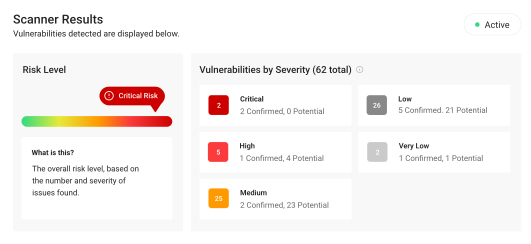
Automatic daily scans
Scans your assets once or more each day to find the latest vulnerabilities and help you stay protected against emerging threats.
Asset risk scoring
See each asset's overall risk level so you know where to focus.
View vulnerabilities by severity
Clear severity ratings make it easy to understand the risk associated with each vulnerability.
Confirmed vs. potential
Transparent reporting shows which vulnerabilities are confirmed and which need to be verified.
Cut through the noise and get alerts for what matters most
Sort and filter findings by status, severity, date found, confirmation status, and more. New critical and high-severity findings go to your email, Slack, Teams, Discord, or any webhook.
Try It Now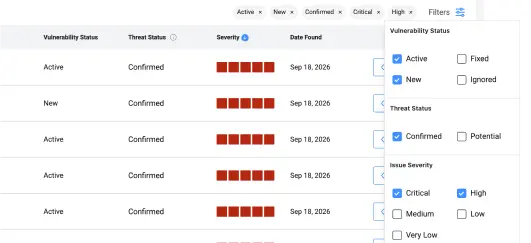
See vulnerability status
Filter vulnerabilities by which are active, which are fixed, and which you’ve marked to ignore.
Stackable filters
Filter by one or more columns to focus on the vulnerabilities you want to see.
Get alerts for new vulnerabilities
Get an email, chat message, or webhook when a new critical or high-severity vulnerability is found.
See everything you need to know about each finding
Every vulnerability finding has a dedicated page with CVEs, CVSS scores, severity, impact, and the raw scanner output, so you can see exactly what was found and where.
Try It Now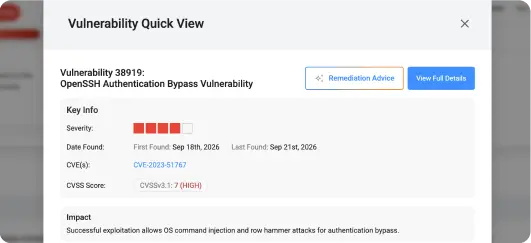
Dig deeper with full details
Learn more with detailed info on what the vulnerability is, its impact, how and where it was found, the raw scanner result, and more.
See when it was found
Know when the vulnerability was first found and if it’s still present.
Correlate with CVEs
See the CVE identifiers and details for each vulnerability that’s found.
Two different severity metrics
Use the severity ratings or CVSS scores to prioritize which vulnerabilities to fix first.
Every finding comes with a fix, customized to match your exact OS
Pick your operating system (we pre-select the one we detected) to get customized instructions for fixing each vulnerability on your specific OS version.
Try It Now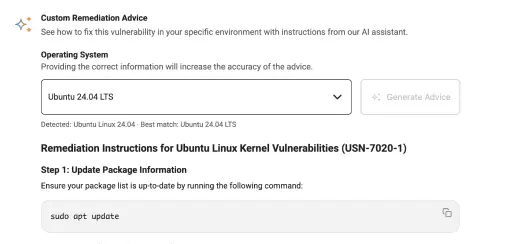
Matched to your OS
We pre-select the OS your scan detected. Change it if needed, and the AI writes remediation steps for that environment.
Step-by-step instructions
Get detailed instructions and commands you can use to fix the vulnerability in your environment.
Speed up analysis and planning with AI Insights (or connect your own AI assistant)
Let AI help you analyze, triage, and fix security issues. Use the built-in AI Insights feature or connect your own AI assistant or agent to our MCP server. Coming soon.
Try It Now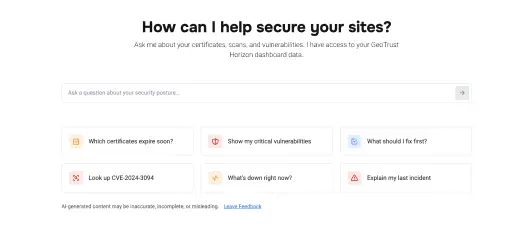
Grounded in your data
AI Insights reads live from your scan data so you get advice that’s adapted to your situation.
Ask in plain language
No filters or query syntax required. Type a question the way you’d ask a teammate.
One-click starters
See what AI Insights can do by trying one of the suggested questions.
Connect via MCP
Give your own AI assistant or agent access to your vulnerability scan data by connecting to our MCP server (coming soon).
 Scanning the threats you see and the ones you don’t.
How To Get Started With Vulnerability Manager
Here's how the scanner checks your servers (Windows, Linux, and more), cloud
infrastructure, and web applications.
Enter your address to begin.
Input the IP address of the server or other device you want to scan for vulnerabilities.
Choose internal and/or external scans.
Install the scanner agent on the server for comprehensive results or run an external scan without needing to install anything.
The scanner finds any security weaknesses.
Your server is scanned daily for 375,000+ different vulnerabilities, including outdated software, misconfigurations, and open ports.
Get an alert when action is needed.
Immediately alerts you of vulnerabilities, misconfigurations, or anything else that needs your attention, and provides detailed remediation instructions.


Industry-Leading Vulnerability Detection Behind Every Scan
GeoTrust Vulnerability Manager is powered by proven vulnerability detection from Qualys. Protect your
business with the same award-winning technology that secures companies in 130+ countries:
of the Forbes
Global 50
of the Forbes top
10 tech companies
coverage of CISA Known Exploited Vulnerabilities


Here's Everything Our Scan Checks
A vulnerability scan is only valuable if it finds all of the security risks you need to know about.
The Vulnerability Manager runs internal and external scans to give you a complete picture
of your security posture inside your servers and cloud infrastructure.
Checks for 375,000+ vulnerabilities, including:
- OS vulnerabilities
- Software vulnerabilities
- Open ports
- Server misconfigurations
- Weak passwords
- Unpatched vulnerabilities
- And more…
Protects all types of internet-facing assets:
- Linux servers
- Windows servers
- Load balancers
- Firewalls
- Devices on private networks
Scans when and where you need:
- External cloud-based scanner
- Internal agent-based scanner
- On-demand scans
- Daily/scheduled scans
Vulnerability Manager Product Information
Learn more about GeoTrust Vulnerability Manager's capabilities.
Here's a closer look at Vulnerability Manager's features and requirements.
- 375,000+ vulnerability checks covering operating systems, installed software, and configurations
- Two scan types: an external scan via the asset’s public IP address, and an internal scan run by an agent installed on the asset
- External scans run automatically every day
- Internal scans run automatically at least once a day; the agent limits its CPU use so it won't slow your server.
- On-demand scans can be triggered manually at any time
- Assets are added by IPv4 address: a public address is required for external scans, and a public or private address is accepted for internal (agent-based) scans
- Internal agent supports Windows and Windows Server, most Linux distributions common Unix systems including BSD, AIX and Solaris, and macOS
- Processor support: x86-64 (Intel and AMD), ARM64, PowerPC and SPARC.
- External scanning requires no agent and is OS-independent
- Internal agent requirements: administrator or root access to install, plus outbound HTTPS on port 443
- No inbound firewall rules required — agent communication is outbound only over an encrypted connection
- Five severity levels: Critical, High, Medium, Low, and Very Low
- Every finding is labeled confirmed or potential
- Remediation guidance with every finding: 96% of all checks have a known patch or fix
- AI Remediation Advice provides remediation steps and instructions specific to your OS
- Alerts are sent when new high/critical vulnerabilities are detected, plus a monthly report
- Notification methods supported: Email, Slack, Microsoft Teams, Discord, Google Chat, Zapier, n8n, Power Automate, Make, & webhooks
- Unlimited notification recipients: send alerts to as many people and channels as you need.
- Export your current results as a CSV file or a PDF
Vulnerability Manager offers two scan types, external and internal. Here’s a guide to help you choose the best scan type for your specific use case. For detailed setup requirements for any of these scan types, see the knowledgebase.
Scan a server with a public IPv4 address (e.g. web server, mail server, database server, etc.). We recommend running both internal and external scans for comprehensive results, or you can choose to run only one type if you prefer.

A cloud virtual machine/VPS hosted on a provider such as AWS, Microsoft Azure or Google Cloud, or a virtual machine on your own hypervisor or private cloud. It may have a public IPv4 address, or it may only be reachable on a private network.
(if public)Any server that is not reachable from the internet such as a file server, application server, office server, private dev server, etc. Since it uses a private IP address, there is nothing for an external scan to connect to.
A desktop, laptop or other workstation used by an employee, whether it sits in the office or connects from home or another location. Workstations are rarely reachable from the internet; instead the internal agent reports from the device as long as it can connect outbound.
A public load balancer in front of two or more backend servers. We recommend running an internal scan on each backend server, then scanning the load balancer's public IP as a separate external asset.
A load balancer, firewall, router or similar device with its own IP address. Run external scans if it has a public IP address and internal scans if you have root access to install the agent (e.g. a device that runs a supported Linux distro).
A website hosted with a shared hosting provider where you can manage your website but cannot install software on the underlying server. You can technically run external scans but be aware that the entire server will be scanned (including other websites). Check your hosting provider’s policy on vulnerability scanning before you start.
(with permission)A Linux server that runs Docker or Kubernetes workloads, such as a self-managed cluster node or a fixed-size node group. The internal agent scans the node's operating system and host-level software, not container images. Nodes must run a supported Linux distribution. Autoscaling node groups, container-optimized OSes (Bottlerocket, Container-Optimized OS) and serverless options (Fargate, GKE Autopilot) aren't a good fit.
A vulnerability scanner checks a server or other device against a catalog of security weaknesses that are already known and documented and tells you which of them apply to you. Vulnerability Manager runs more than 375,000 of those checks against the operating system, the software installed, the open ports, and the way it is all configured — then tells you how to fix what it finds.
While there is some overlap, these are separate tools. Vulnerability Manager checks the server your website runs on: the operating system, the software installed on it, the open ports, and the configuration, all against vulnerabilities that are already known and cataloged. A website security scanner tests your site itself, including your own code, forms, and logins, for flaws like SQL injection and cross-site scripting. Both are useful, and they answer different questions.
External scanning needs nothing installed and shows you what someone outside can reach. Internal scanning uses a small agent on the asset and sees considerably more, because most known vulnerabilities are not easily visible (i.e. without running an exploit against your server) from outside. (Note that "not visible from outside" is not the same as "not a problem" — a scanner asks polite questions, and an attacker does not.) Running both gives you the fullest picture.
Anything you run that has a public-facing IP address, or that you can install the agent on. That covers Windows and Linux servers, Unix systems, macOS machines, virtual machines, cloud instances, load balancers, firewalls, and devices on a private network. You add each asset yourself by entering its IP address—Vulnerability Manager assesses the machines you specify rather than searching your network for devices you have not told it about.
Findings include vulnerability severity ratings, whether it is confirmed or potential, relevant CVE references, and remediation guidance. You’ll see the recommended upgrade, links to the vendor’s patch, and any available workarounds. AI Remediation Advice goes further and gives the specific steps and commands for that server, along with how to check the fix worked.
Your external scan starts shortly after your subscription is set up, and your internal scan starts once the agent is installed and connected. Results appear in your dashboard once a scan completes. The first internal results can take a full cycle to come through (depending on your server’s available resources and other factors), so if it has been less than 24 hours, give the agent a little more time.
One subscription covers one server, so fifty servers mean fifty subscriptions. The price per server falls as you add more, from $12.00 a month down to $3.50 a month at a hundred assets or more, with discounts applied automatically when the assets are in the same account. See the pricing page for all tiers.
No contracts and no commitments. Pay monthly or annually, add or remove servers anytime, and get a lower per-server price as you scale. Cancel anytime.
No, and that is a deliberate choice rather than a missing feature. Customers told us clearly that they did not want a security product patching production servers on its own schedule. Vulnerability Manager finds the problem, tells you exactly how to fix it, and leaves the timing of the change with you.
96% of the checks we run have a known patch or fix behind them. Where the vendor has not released one, the report tells you so plainly instead of leaving you guessing, and AI Remediation Advice can often suggest a way to work around the issue or reduce the risk until a patch exists.
Historical data is used to show you when a vulnerability was first found, whether it has been fixed, etc. Your dashboard and your reports show your current position — the most recent result for each finding — rather than a record of every scan we have run. You can export your current results as a CSV file or a PDF whenever you like and keep your own copies.
Vulnerability Manager is not a compliance certification product, and it does not issue compliance reports. However, it does the thing many of those requirements are actually asking for: it finds and documents the known vulnerabilities on the assets you add, on a schedule, and lets you export your current results as a PDF or a CSV to send to an insurer, an auditor or a client. If your compliance framework requires documented evidence of general vulnerability scans run on your systems, Vulnerability Manager can help you.